This window says how an object behaves in the game. You open it from the Inspector, with the Object behavior button. It replaces many settings that used to be done by hand.
The eight ways to move
You choose only one. Here is each choice with the engine's own sentence:
 Scenery
Doesn't move, doesn't block anyone. For a background, a drawing or a text that must not move. Ground / wall
Doesn't move: you walk on it and bump into it. For the ground, walls and fixed platforms. Falls and bounces
Crate, ball, rock… It is pulled by gravity and bounces off the ground. Platform character
Walks, jumps, climbs ladders (side view). You steer it with the joystick or with buttons. Patrol (back and forth)
Walks on its own one way then the other: perfect for an enemy. It turns around at the edge of its ground and against a wall. Top-down character
Goes in every direction (iso view too). It can go in 4 directions, or in isometric view. Dragged with a finger
The player moves it by touching it. The player picks it up and puts it where they want. Elevator (back and forth)
A platform that moves on its own and carries what stands on it. You set its direction, its distance and its pause.
The window at a glance
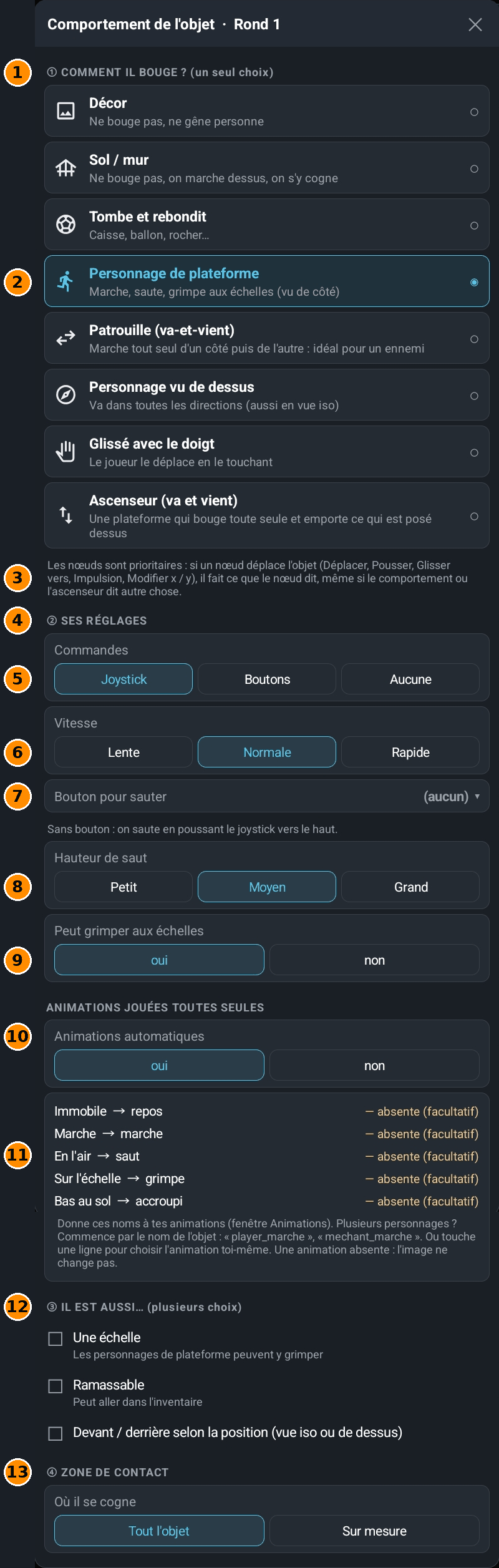
- 1HOW DOES IT MOVE? (one choice): this is the object's behavior.
- 2The active choice is blue, with a filled circle. Tap another choice to change.
- 3The note about nodes: nodes come first. If a node moves the object (Move, Push, Glide to…), it does what the node says, even if the behavior says something else.
- 4Its settings: this part changes with the choice above. Here, the settings of a platformer character.
- 5Controls: how the player steers it. Joystick, Buttons (left, right…), or None (it is driven by your nodes: an enemy, a non-player character).
- 6Speed: Slow, Normal or Fast.
- 7Jump button: choose a button from your game. With no button, you jump by pushing the joystick up.
- 8Jump height: Small, Medium or High.
- 9Can climb ladders: yes or no. You need “ladder” objects in the scene.
- 10Automatic animations: when it is yes, the object changes its image by itself according to what it does.
- 11The list of states: each state of the object (Standing still, Walking, In the air, On the ladder, Down on the ground) with the animation name it expects (idle, walk, jump, climb, duck). “— missing (optional)” means you do not have an animation with that name yet: the image does not change. Give these names to your animations (Animation window). With several characters, start with the object's name (for example player_marche). Tap a line to choose the animation yourself.
- 12IT IS ALSO… (several choices): A ladder (platformer characters can climb it), Collectable (can go into the inventory) and “in front / behind depending on position” (for top-down or isometric views).
- 13Contact area: Where it collides: Whole object or Custom. For custom, set the area with the handles on the object, or in the Inspector's “Contact area”.