The Library is the big stock of ready-made images, sounds, music, fonts and titles. You open it with the In Yop2D button of the Assets (Resources) window, or when you choose an image, a sound, a font or a title in the editor.
The window at a glance
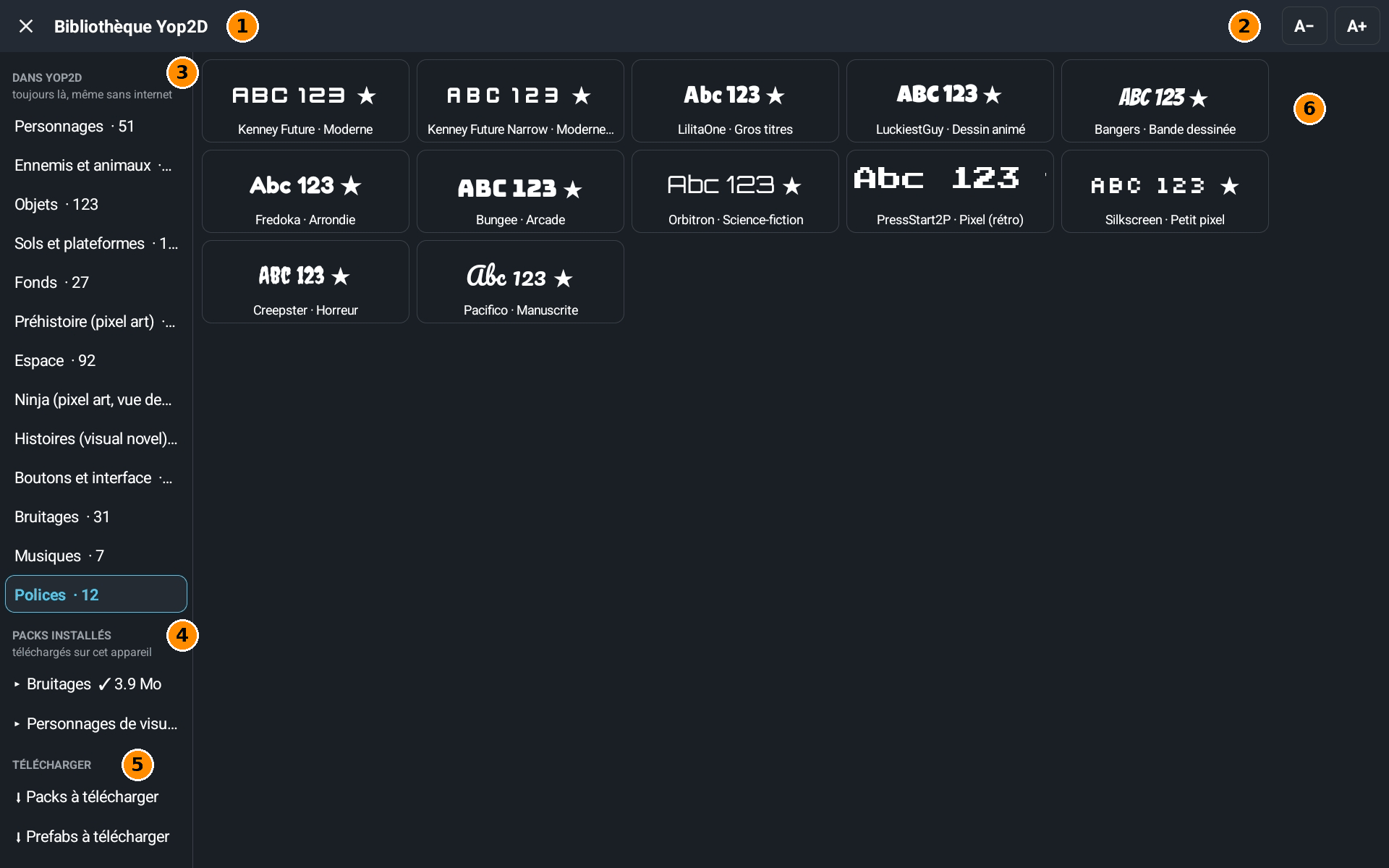
- 1Close the Library and go back to where you were.
- 2A− and A+: change the preview size. Useful for fonts and titles, which are easier to judge when big.
- 3In Yop2D (always there, even offline): the themes already in Yop2D (characters, enemies, objects, backgrounds, sound effects, music, fonts…). The number next to each is the number of items. Tap a theme to see what is inside. Depending on where you open the Library from, you may also see My project (the files already in your project) with the Import from the tablet button.
- 4Installed packs: the packs you downloaded on this device, with their size. Tap the arrow to see their folders. A pack is deleted from its page (Delete button); what you already took for your projects stays in the projects.
- 5Download: Packs to download (big series of images, sounds and fonts) and Prefabs to download (ready-to-use objects). You need internet.
- 6The cards: tap a card to take it. Only the chosen file is copied into your project. An animated image (blue frame, ▶) asks whether you want it with its animations or as a Just one image. For a font, the card shows a sample text written with it.