The Assets window is the box where Yop2D keeps all your project's files (images, sounds, fonts, texts…) and from where you start the tools that make some of them. Open it with the Assets button in the editor's left panel.
The window at a glance
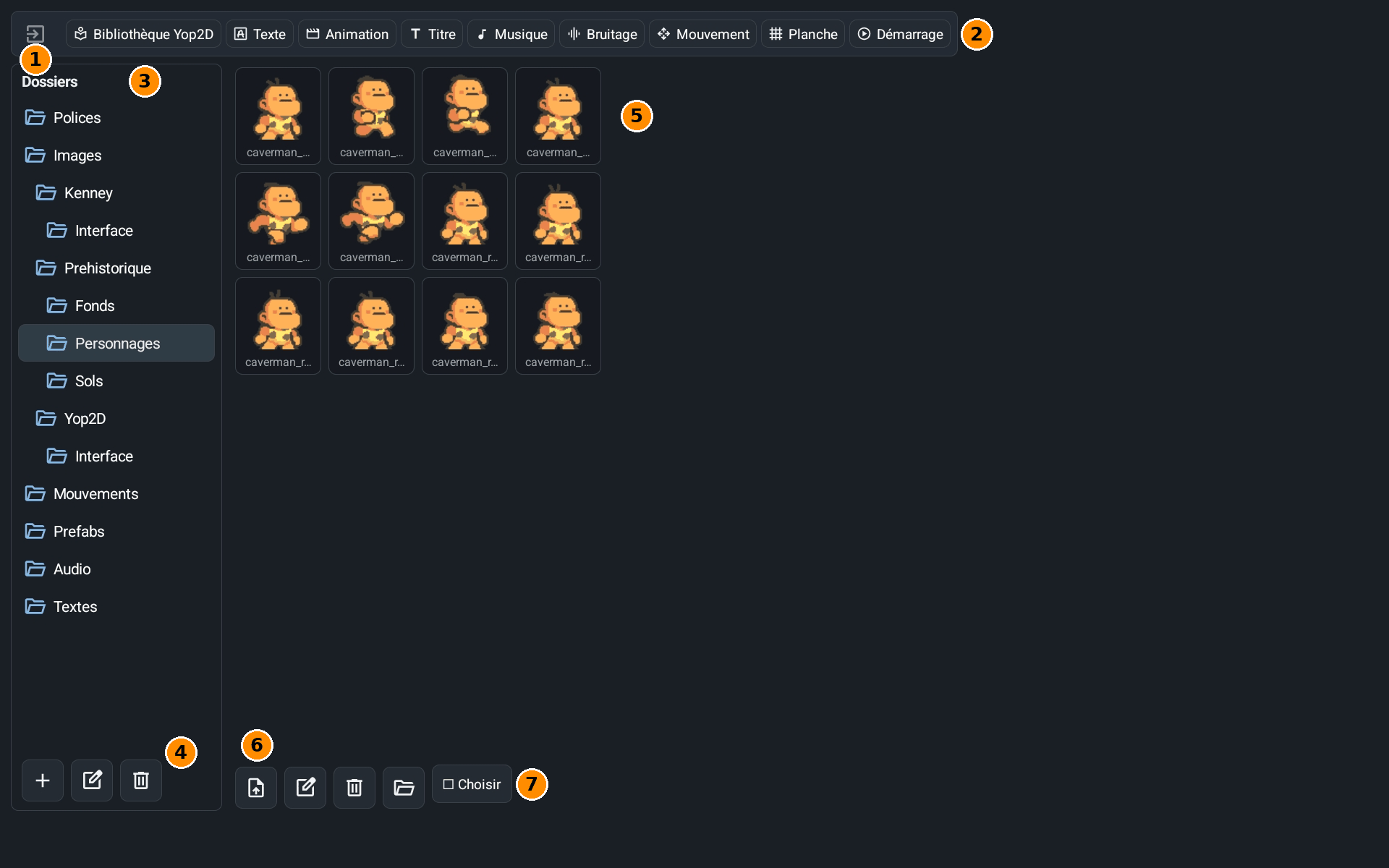
- 1Exit: closes the window and goes back to the editor.
- 2The tool row: each button opens a tool (see the list below).
- 3Folders: all the folders of your project. Tap a folder to see what is inside. The starting folders are Fonts, Images, Mouvements, Prefabs, Audio and Texts.
- 4The folder buttons: create a folder (+), rename it, delete it.
- 5The files of the chosen folder, as thumbnails. To sort a file, keep your finger on it then drag it onto a folder in the tree: the paths are updated by themselves.
- 6The file buttons: import, rename, delete, move.
- 7Select: lets you tick several files to delete or move them all at once.
The tools of the top row
- In Yop2D: ready-made images, sounds, music, fonts and titles, with the packs and prefabs to download.
- Open dialogues.txt: write the game's texts (the dialogues.txt file), in several languages.
- Manage Sequences (Animations): gather images into animations (walk, jump…).
- Manage Title Styles: create title styles (color, outline, font).
- Music: compose music with blocks (Android 10 or newer).
- Sound FX: make a sound effect or transform a ready-made sound (Android 10 or newer).
- Movement: make an object move in steps (position, rotation, size, transparency).
- Sheet: cut a sheet of images into animations.
- Start screen: create your game's start screen (image, title, music).
The small buttons
 Exit
Closes the window. New folder
Creates a folder inside the chosen folder. Rename the folder
Changes the chosen folder's name. Objects keep their images. Delete the folder
Erases the chosen folder. Import
Adds a file from your tablet (image, sound, font…) to the chosen folder. A prefab .zip file goes into Prefabs. Rename
Changes a file's name. Objects that use it keep their image. Delete
Erases the chosen file. Move
Moves the chosen file to another folder.